- All Products
- All Products
- Attachment Control for Odoo - SFTP Connector


Attachment Control for Odoo - SFTP Connector
https://spre.es/shop/attachment-control-for-odoo-sftp-connector-77 https://spre.es/web/image/product.template/77/image_1920?unique=2a2e8b5Attachment Control - SFTP
Add SFTP as a storage backend for Attachment Control so routing, audit, move, storage archive and restore workflows can work with SSH/SFTP servers through credential-based access.
What this connector adds
- SFTP provider in Storage Credentials: create credentials for SSH/SFTP servers.
- Credential-based backend usage: the core module can use SFTP in routing, move, storage archive and restore flows.
- Generic backend operations: read, write, delete, list and connection test through the common backend API.
- Provider isolation: SFTP-specific logic stays outside the core module.
No data is sent to the developer. Data is sent only to the SFTP service explicitly configured by the user.
Compatibility
- On-premise: supported.
- Odoo.sh: supported if the Python dependency is available in the build/runtime and the SSH/SFTP endpoint is reachable.
- Odoo Online: not supported for this connector because custom Python dependencies are not available and external SSH configuration is outside normal Odoo Online constraints.
Requirements
- Install the core module Attachment Control.
- Install the Python dependency
paramikoin the same Python environment used by Odoo. - Install this connector module
attachment_storage_manager_sftp. - Restart Odoo.
Access by SSH key
authorized_keys of the remote SFTP user.key_filename to the private key path through Extra Parameters (JSON)..pub file. If the server does not accept the key as pasted, check the server documentation and convert the public key if required.
ssh-keygen -e -f /path/to/key.pub -m RFC4716
Credential fields
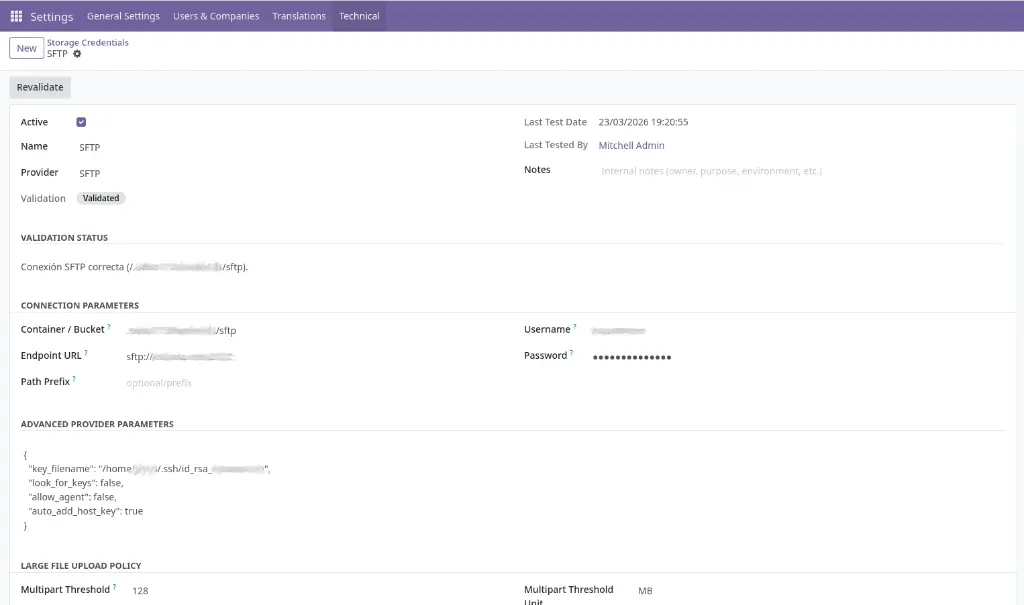
key_filename, look_for_keys, allow_agent or auto_add_host_key. Example:{
"key_filename": "/home/<user>/.ssh/id_rsa_<user>",
"look_for_keys": false,
"allow_agent": false,
"auto_add_host_key": true
}
How it is used
Operational notes
- The remote SFTP path must already exist and be writable before running move, storage or restore operations.
- Always test the credential before enabling production use.
- If host key verification fails, add the server to
known_hostsor useauto_add_host_keyonly for tests. - For long-running jobs, configure
limit_time_real_cron = 3600inodoo.conf.
Operational safety
Attachment Control - SFTP
Add SFTP as a storage backend for Attachment Control so routing, audit, move, storage archive and restore workflows can work with SSH/SFTP servers through credential-based access.
What this connector adds
- SFTP provider in Storage Credentials: create credentials for SSH/SFTP servers.
- Credential-based backend usage: the core module can use SFTP in routing, move, storage archive and restore flows.
- Generic backend operations: read, write, delete, list and connection test through the common backend API.
- Provider isolation: SFTP-specific logic stays outside the core module.
No data is sent to the developer. Data is sent only to the SFTP service explicitly configured by the user.
Compatibility
- On-premise: supported.
- Odoo.sh: supported if the Python dependency is available in the build/runtime and the SSH/SFTP endpoint is reachable.
- Odoo Online: not supported for this connector because custom Python dependencies are not available and external SSH configuration is outside normal Odoo Online constraints.
Requirements
- Install the core module Attachment Control.
- Install the Python dependency
paramikoin the same Python environment used by Odoo. - Install this connector module
attachment_storage_manager_sftp. - Restart Odoo.
Access by SSH key
authorized_keys of the remote SFTP user.key_filename to the private key path through Extra Parameters (JSON)..pub file. If the server does not accept the key as pasted, check the server documentation and convert the public key if required.
ssh-keygen -e -f /path/to/key.pub -m RFC4716
Credential fields
key_filename, look_for_keys, allow_agent or auto_add_host_key. Example:{
"key_filename": "/home/<user>/.ssh/id_rsa_<user>",
"look_for_keys": false,
"allow_agent": false,
"auto_add_host_key": true
}
How it is used
Operational notes
- The remote SFTP path must already exist and be writable before running move, storage or restore operations.
- Always test the credential before enabling production use.
- If host key verification fails, add the server to
known_hostsor useauto_add_host_keyonly for tests. - For long-running jobs, configure
limit_time_real_cron = 3600inodoo.conf.
Operational safety
Attachment Control - SFTP
Añade SFTP como backend de almacenamiento para Attachment Control para que los flujos de routing, audit, move, storage archive y restore puedan trabajar con servidores SSH/SFTP mediante acceso basado en credenciales.
Qué añade este conector
- Proveedor SFTP en Storage Credentials: crea credenciales para servidores SSH/SFTP.
- Uso de backend basado en credenciales: el módulo core puede usar SFTP en los flujos de routing, move, storage archive y restore.
- Operaciones backend genéricas: lectura, escritura, borrado, listado y prueba de conexión mediante la API backend común.
- Aislamiento del proveedor: la lógica específica de SFTP permanece fuera del módulo core.
No se envía ningún dato al desarrollador. Los datos se envían únicamente al servicio SFTP configurado explícitamente por el usuario.
Compatibilidad
- On-premise: soportado.
- Odoo.sh: soportado si la dependencia Python está disponible en el build/runtime y el endpoint SSH/SFTP es alcanzable.
- Odoo Online: no soportado para este conector porque las dependencias Python personalizadas no están disponibles y la configuración SSH externa queda fuera de las restricciones normales de Odoo Online.
Requisitos
- Instala el módulo core Attachment Control.
- Instala la dependencia Python
paramikoen el mismo entorno Python usado por Odoo. - Instala este módulo conector
attachment_storage_manager_sftp. - Reinicia Odoo.
Acceso mediante clave SSH
authorized_keys del usuario SFTP remoto.key_filename a la ruta de la clave privada mediante Extra Parameters (JSON)..pub por defecto. Si el servidor no acepta la clave pegada tal cual, revisa la documentación del servidor y convierte la clave pública si es necesario.
ssh-keygen -e -f /path/to/key.pub -m RFC4716
Campos de la credencial
key_filename, look_for_keys, allow_agent o auto_add_host_key. Ejemplo:{
"key_filename": "/home/<user>/.ssh/id_rsa_<user>",
"look_for_keys": false,
"allow_agent": false,
"auto_add_host_key": true
}
Cómo se utiliza
Notas operativas
- La ruta SFTP remota debe existir previamente y ser escribible antes de ejecutar moves, storages o restores.
- Prueba siempre la credencial antes de habilitar su uso en producción.
- Si falla la verificación de host key, añade el servidor a
known_hostso usaauto_add_host_keysolo para pruebas. - Para jobs de larga duración, configura
limit_time_real_cron = 3600enodoo.conf.
Seguridad operativa
Attachment Control - SFTP
Añade SFTP como backend de almacenamiento para Attachment Control para que los flujos de routing, audit, move, storage archive y restore puedan trabajar con servidores SSH/SFTP mediante acceso basado en credenciales.
Qué añade este conector
- Proveedor SFTP en Storage Credentials: crea credenciales para servidores SSH/SFTP.
- Uso de backend basado en credenciales: el módulo core puede usar SFTP en los flujos de routing, move, storage archive y restore.
- Operaciones backend genéricas: lectura, escritura, borrado, listado y prueba de conexión mediante la API backend común.
- Aislamiento del proveedor: la lógica específica de SFTP permanece fuera del módulo core.
No se envía ningún dato al desarrollador. Los datos se envían únicamente al servicio SFTP configurado explícitamente por el usuario.
Compatibilidad
- On-premise: soportado.
- Odoo.sh: soportado si la dependencia Python está disponible en el build/runtime y el endpoint SSH/SFTP es alcanzable.
- Odoo Online: no soportado para este conector porque las dependencias Python personalizadas no están disponibles y la configuración SSH externa queda fuera de las restricciones normales de Odoo Online.
Requisitos
- Instala el módulo core Attachment Control.
- Instala la dependencia Python
paramikoen el mismo entorno Python usado por Odoo. - Instala este módulo conector
attachment_storage_manager_sftp. - Reinicia Odoo.
Acceso mediante clave SSH
authorized_keys del usuario SFTP remoto.key_filename a la ruta de la clave privada mediante Extra Parameters (JSON)..pub por defecto. Si el servidor no acepta la clave pegada tal cual, revisa la documentación del servidor y convierte la clave pública si es necesario.
ssh-keygen -e -f /path/to/key.pub -m RFC4716
Campos de la credencial
key_filename, look_for_keys, allow_agent o auto_add_host_key. Ejemplo:{
"key_filename": "/home/<user>/.ssh/id_rsa_<user>",
"look_for_keys": false,
"allow_agent": false,
"auto_add_host_key": true
}
Cómo se utiliza
Notas operativas
- La ruta SFTP remota debe existir previamente y ser escribible antes de ejecutar moves, storages o restores.
- Prueba siempre la credencial antes de habilitar su uso en producción.
- Si falla la verificación de host key, añade el servidor a
known_hostso usaauto_add_host_keysolo para pruebas. - Para jobs de larga duración, configura
limit_time_real_cron = 3600enodoo.conf.