- All Products
- All Products
- Attachment Control for Odoo - Google Drive Connector
Attachment Control for Odoo - Google Drive Connector
https://spre.es/shop/attachment-control-for-odoo-google-drive-connector-73 https://spre.es/web/image/product.template/73/image_1920?unique=31de9a6Attachment Control - Google Drive
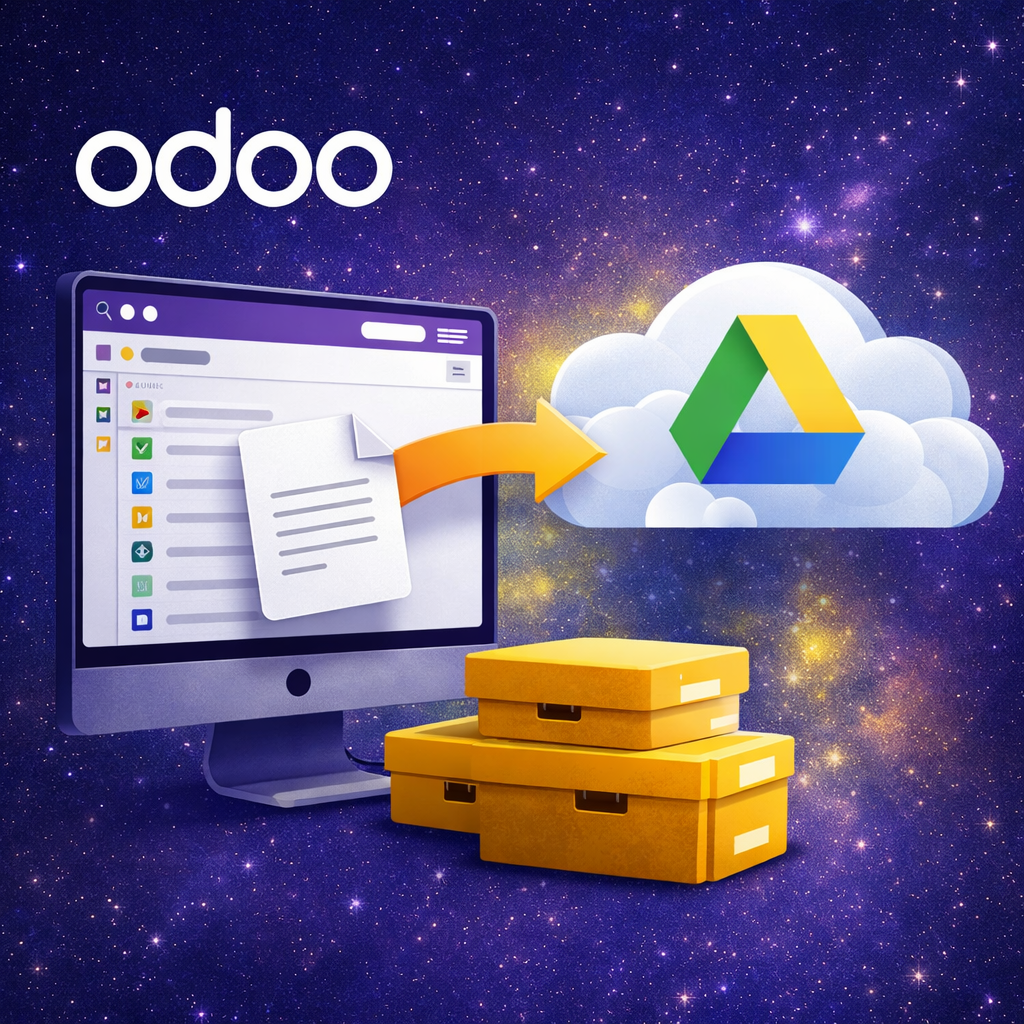
Add Google Drive as a storage backend for Attachment Control so routing, audit, move, storage archive and restore workflows can work with Google Drive through OAuth-based credentials.
What this connector adds
- Google Drive provider in Storage Credentials: create credentials for Google Drive through OAuth 2.0.
- Credential-based backend usage: the core module can use this provider in routing, move, storage archive and restore flows.
- Generic backend operations: read, write, delete, list and connection test through the common backend API.
- Provider isolation: Google-specific OAuth and API logic stays outside the core module.
No data is sent to the developer. Data is sent only to the Google APIs explicitly configured by the user.
Compatibility
- On-premise: supported.
- Odoo.sh: supported if outbound HTTPS access to Google APIs is allowed.
- Odoo Online: not supported for this connector because custom module code and callback routing are outside normal Odoo Online constraints.
Requirements
- Install the core module Attachment Control.
- Ensure the Python dependency
requestsis available in the same Python environment used by Odoo. - Install this connector module
attachment_storage_manager_gdrive. - Configure Google Cloud OAuth credentials and the exact callback URL used by Odoo.
Google OAuth setup
https://your-odoo.example.com.https://your-odoo.example.com/attachment_storage_manager_gdrive/oauth/callbackweb.base.url of Odoo exactly, including scheme and domain.
Credential fields
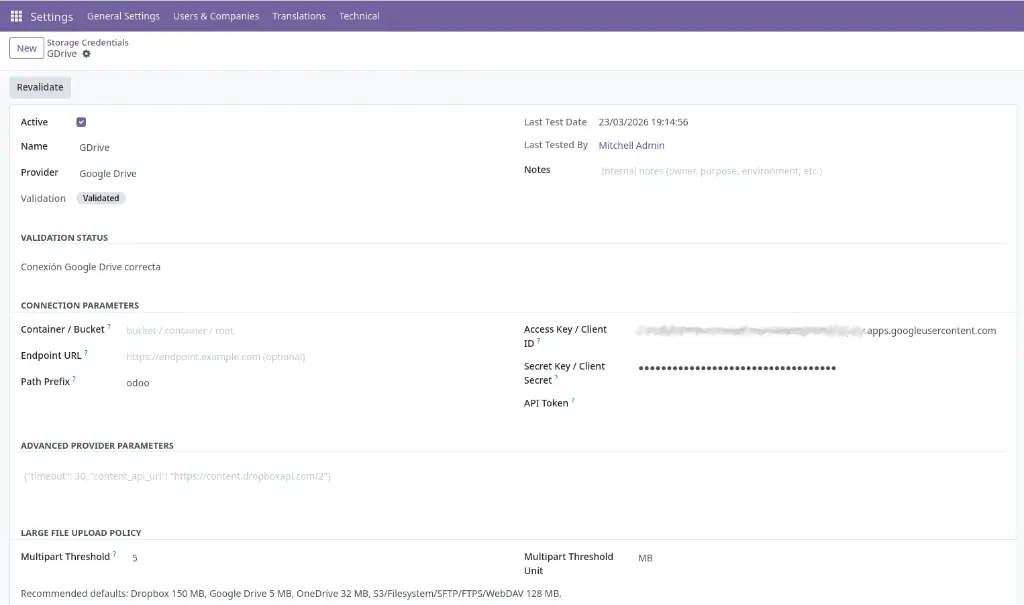
.apps.googleusercontent.com.{
"timeout": 30
}
How it is used
Operational notes
web.base.urlmust match your public HTTPS URL.- Behind a reverse proxy, enable
proxy_mode = Trueand pass the correct HTTPS scheme to Odoo. - If Google does not return a refresh token, revoke app access and authorize again.
- If authorization fails with an audience restriction such as
org_internal, review whether the OAuth consent screen is configured as Internal or External. - For long-running jobs, configure
limit_time_real_cron = 3600inodoo.conf.
Operational safety
Attachment Control - Google Drive
Add Google Drive as a storage backend for Attachment Control so routing, audit, move, storage archive and restore workflows can work with Google Drive through OAuth-based credentials.
What this connector adds
- Google Drive provider in Storage Credentials: create credentials for Google Drive through OAuth 2.0.
- Credential-based backend usage: the core module can use this provider in routing, move, storage archive and restore flows.
- Generic backend operations: read, write, delete, list and connection test through the common backend API.
- Provider isolation: Google-specific OAuth and API logic stays outside the core module.
No data is sent to the developer. Data is sent only to the Google APIs explicitly configured by the user.
Compatibility
- On-premise: supported.
- Odoo.sh: supported if outbound HTTPS access to Google APIs is allowed.
- Odoo Online: not supported for this connector because custom module code and callback routing are outside normal Odoo Online constraints.
Requirements
- Install the core module Attachment Control.
- Ensure the Python dependency
requestsis available in the same Python environment used by Odoo. - Install this connector module
attachment_storage_manager_gdrive. - Configure Google Cloud OAuth credentials and the exact callback URL used by Odoo.
Google OAuth setup
https://your-odoo.example.com.https://your-odoo.example.com/attachment_storage_manager_gdrive/oauth/callbackweb.base.url of Odoo exactly, including scheme and domain.
Credential fields
.apps.googleusercontent.com.{
"timeout": 30
}
How it is used
Operational notes
web.base.urlmust match your public HTTPS URL.- Behind a reverse proxy, enable
proxy_mode = Trueand pass the correct HTTPS scheme to Odoo. - If Google does not return a refresh token, revoke app access and authorize again.
- If authorization fails with an audience restriction such as
org_internal, review whether the OAuth consent screen is configured as Internal or External. - For long-running jobs, configure
limit_time_real_cron = 3600inodoo.conf.
Operational safety
Attachment Control - Google Drive
Añade Google Drive como backend de almacenamiento para Attachment Control para que los flujos de routing, audit, move, storage archive y restore puedan trabajar con Google Drive mediante credenciales basadas en OAuth.
Qué añade este conector
- Proveedor Google Drive en Storage Credentials: crea credenciales para Google Drive mediante OAuth 2.0.
- Uso de backend basado en credenciales: el módulo core puede usar este proveedor en los flujos de routing, move, storage archive y restore.
- Operaciones backend genéricas: lectura, escritura, borrado, listado y prueba de conexión mediante la API backend común.
- Aislamiento del proveedor: la lógica específica de OAuth y API de Google permanece fuera del módulo core.
No se envía ningún dato al desarrollador. Los datos se envían únicamente a las APIs de Google configuradas explícitamente por el usuario.
Compatibilidad
- On-premise: soportado.
- Odoo.sh: soportado si el acceso HTTPS saliente a las APIs de Google está permitido.
- Odoo Online: no soportado para este conector porque el código del módulo personalizado y el callback quedan fuera de las restricciones normales de Odoo Online.
Requisitos
- Instala el módulo core Attachment Control.
- Asegúrate de que la dependencia Python
requestsestá disponible en el mismo entorno Python usado por Odoo. - Instala este módulo conector
attachment_storage_manager_gdrive. - Configura las credenciales OAuth de Google Cloud y la URL exacta de callback usada por Odoo.
Configuración de Google OAuth
https://your-odoo.example.com.https://your-odoo.example.com/attachment_storage_manager_gdrive/oauth/callbackweb.base.url efectivo de Odoo, incluyendo esquema y dominio.
Campos de la credencial
.apps.googleusercontent.com.{
"timeout": 30
}
Cómo se utiliza
Notas operativas
web.base.urldebe coincidir con tu URL pública HTTPS.- Detrás de un proxy inverso, activa
proxy_mode = Truey pasa correctamente el esquema HTTPS a Odoo. - Si Google no devuelve un refresh token, revoca el acceso de la app y autoriza de nuevo.
- Si la autorización falla con una restricción de audiencia como
org_internal, revisa si la pantalla de consentimiento OAuth está configurada como Internal o External. - Para jobs de larga duración, configura
limit_time_real_cron = 3600enodoo.conf.
Seguridad operativa
Attachment Control - Google Drive
Añade Google Drive como backend de almacenamiento para Attachment Control para que los flujos de routing, audit, move, storage archive y restore puedan trabajar con Google Drive mediante credenciales basadas en OAuth.
Qué añade este conector
- Proveedor Google Drive en Storage Credentials: crea credenciales para Google Drive mediante OAuth 2.0.
- Uso de backend basado en credenciales: el módulo core puede usar este proveedor en los flujos de routing, move, storage archive y restore.
- Operaciones backend genéricas: lectura, escritura, borrado, listado y prueba de conexión mediante la API backend común.
- Aislamiento del proveedor: la lógica específica de OAuth y API de Google permanece fuera del módulo core.
No se envía ningún dato al desarrollador. Los datos se envían únicamente a las APIs de Google configuradas explícitamente por el usuario.
Compatibilidad
- On-premise: soportado.
- Odoo.sh: soportado si el acceso HTTPS saliente a las APIs de Google está permitido.
- Odoo Online: no soportado para este conector porque el código del módulo personalizado y el callback quedan fuera de las restricciones normales de Odoo Online.
Requisitos
- Instala el módulo core Attachment Control.
- Asegúrate de que la dependencia Python
requestsestá disponible en el mismo entorno Python usado por Odoo. - Instala este módulo conector
attachment_storage_manager_gdrive. - Configura las credenciales OAuth de Google Cloud y la URL exacta de callback usada por Odoo.
Configuración de Google OAuth
https://your-odoo.example.com.https://your-odoo.example.com/attachment_storage_manager_gdrive/oauth/callbackweb.base.url efectivo de Odoo, incluyendo esquema y dominio.
Campos de la credencial
.apps.googleusercontent.com.{
"timeout": 30
}
Cómo se utiliza
Notas operativas
web.base.urldebe coincidir con tu URL pública HTTPS.- Detrás de un proxy inverso, activa
proxy_mode = Truey pasa correctamente el esquema HTTPS a Odoo. - Si Google no devuelve un refresh token, revoca el acceso de la app y autoriza de nuevo.
- Si la autorización falla con una restricción de audiencia como
org_internal, revisa si la pantalla de consentimiento OAuth está configurada como Internal o External. - Para jobs de larga duración, configura
limit_time_real_cron = 3600enodoo.conf.